Free For Charity
Domains

Welcome to Free For Charity Domains — a project of Free For Charity, providing free domains and hosting services to other non-profit organizations.

hero image

Dear Prospective FFC Domain Supported Charity

** Please read this full page top to bottom before taking any actions as it has several follow-on tasks for you as a new domain owner / domain transfer to freeforcharty.org**

You will have to perform several steps to get full use of your domain once ordered.

The first step is always to complete the FFC on-boarding

HOW TO ORDER YOUR DOMAIN NAME

To order a free domain name with Free For Charity you must sign up for a Cloudflare account and also sign up at our hosting project site FFC Hosting. Before signing up at our site please read this full page to make sure you are ready to complete all steps.
Step 1

Step 1

Set up your Cloudflare account

Find more
Step 2

Step 2

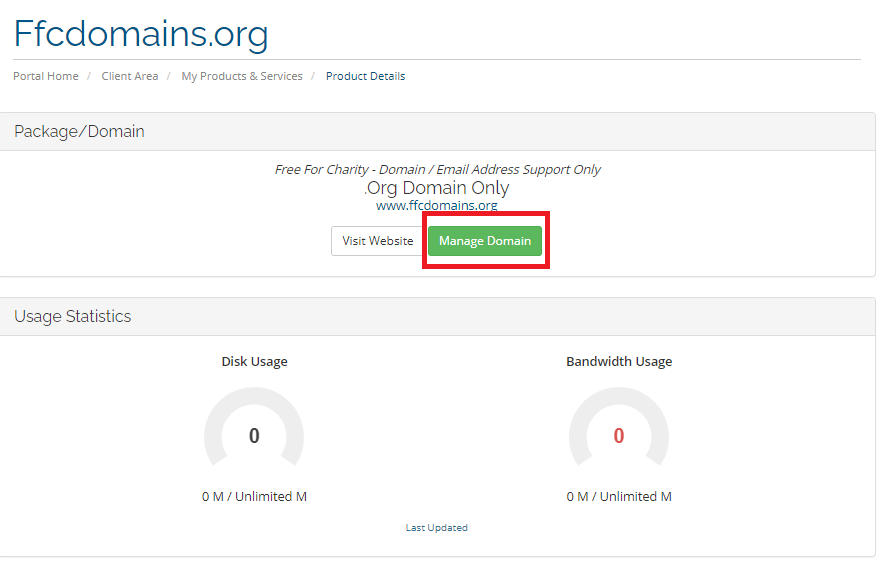
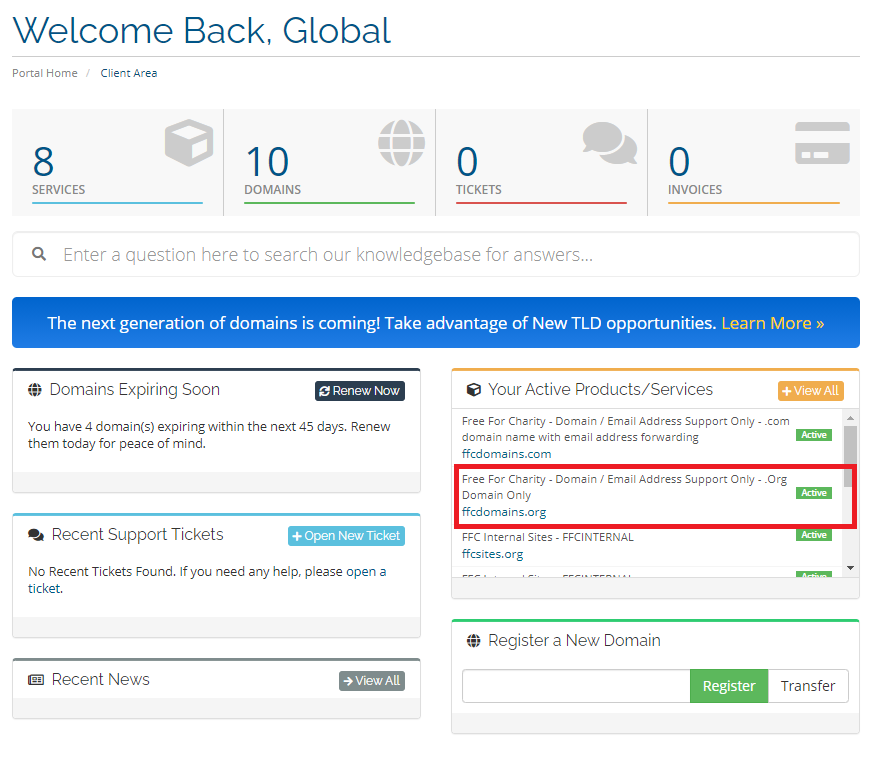
Go to our domain management system page

Click here
Step 3

Step 3

Select Register a New Domain

Follow Steps
Step 4

Step 4

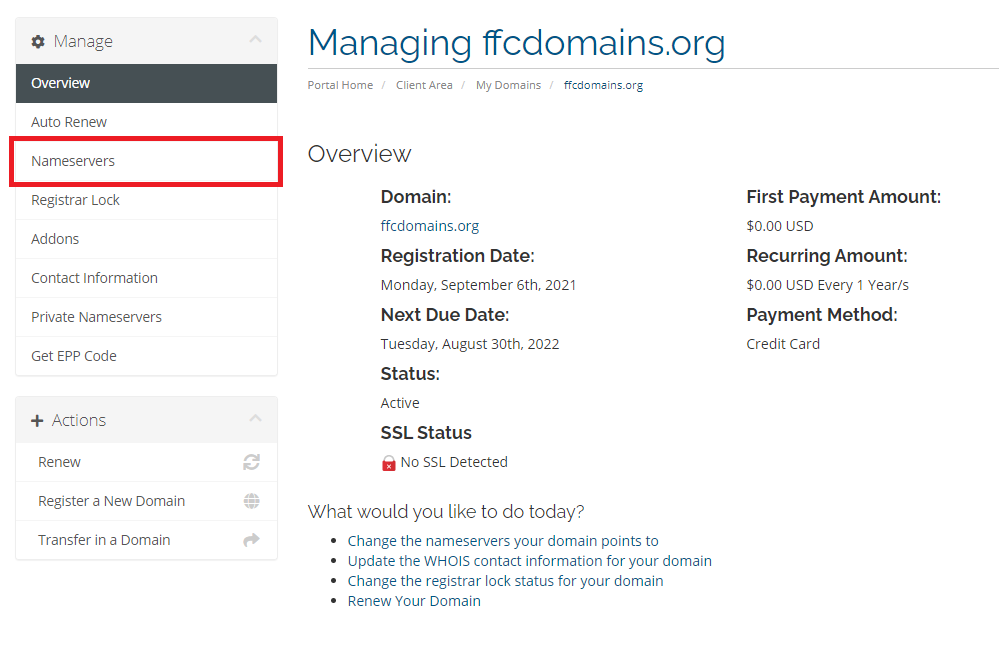
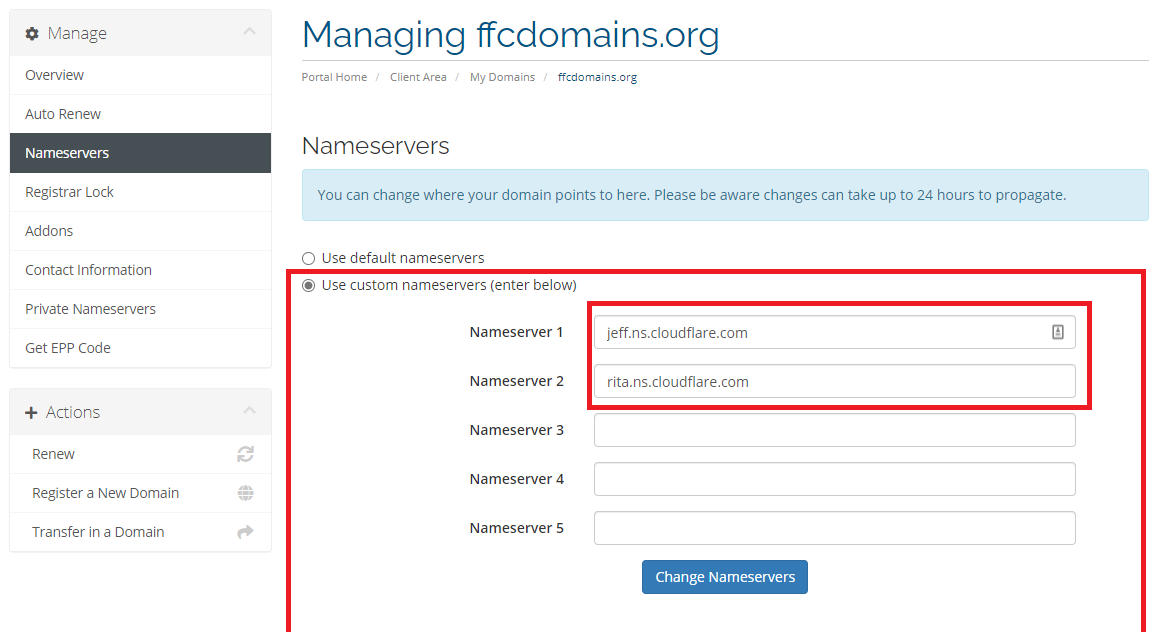
Change your DNS to point to Cloudflare

Click here

Follow the following steps

  1. Use your organizational outlook.com account
    e.g. [email protected]
  2. Sign up at CloudFlare
    https://dash.cloudflare.com/sign-upFor Help (CloudFlare Setup Help)
  3. Leave the tab open when you buy your domain name

Follow the following steps

  • Select only a .org domain
    1. i. Follow all steps for the checkout
    2. ii. Do not forget to put in the coupon code found in the email you received from the FFC Onboarding Acceptance or it will charge you money. This is required to stop spam purchases and to ensure only charities use the service
  • NOTE: You must include payment method as this is a commercial system and even with a $0 invoice it will not run each year if it does not see payment. We recommend Paypal and ACH as these are the most stable.
  • NOTE: If you have a domain already with another domain registrar (e.g. godaddy, enom) we do not recommend that you move your domain name without calling us first. In either case make sure it is already verified in your Cloudflare account
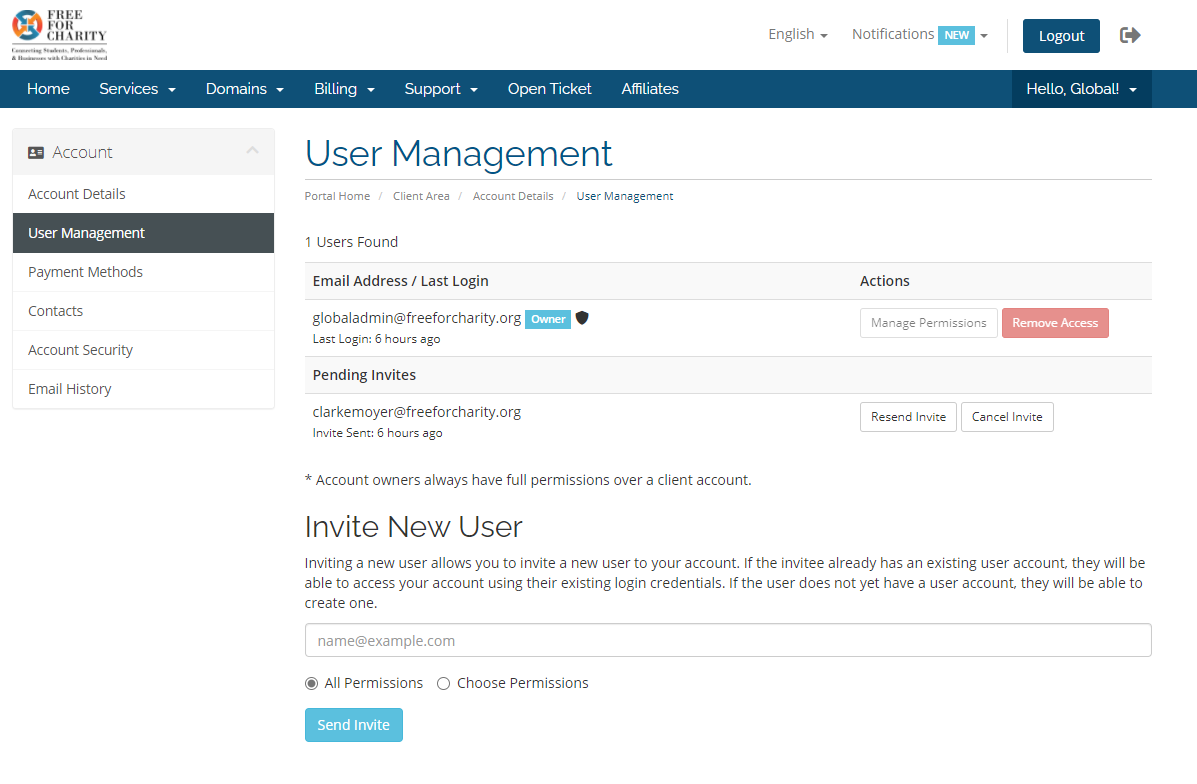
  • NOTE: As soon as you complete the purchase you will be brought into the account area. It is very important that you create an additional user in the users tab. We require at least 2 points for contact for a domain name and to support recovery for your charity.
    1. i. Check your junk mail and spam boxes for all notices and mark as not spam
User Management - Invite New User

Change your DNS to point to Cloudflare

User Management - Invite New User

HOW TO VERIFY YOUR DOMAIN WITH ICANN

Please note that you will now own this domain but several emails from the domain registrar system will need to be accepted as they verify your account to own the domain.

What to do then?

domain verification email

Step 1

Check for emails about verification to the email address you used to register this domain

There are three main things to keep in mind.

Email verification icon

Check for emails about verification to the email address you used to register this domain

Email verification icon

FAILING TO RESPOND TO THESE EMAILS WILL RESULT IN SUSPENSION OF YOUR DOMAIN

Email verification icon

Free For Charity does not send or control these emails but we will be notified if you did not verify your ownership in the time provided.

domain verification email

Step 2

You can manage your domain anytime by accessing our system with the account you created at checkout.

https://freeforcharity.org/hub

Have any Question

If at anytime 72 hours after your order has been placed you have any questions about these verifications please contact

Contact
Clarke Moyer

HOW TO SET UP EMAIL HOSTING FOR THE NEW DOMAIN

Email hosting means that you can have email addresses at your domain name. e.g.

Step Illustration

Step 1

Select an email provider

Free For Charity recommends Microsoft as your email provider as it is free to charities and comes with many additional services at no cost

Step Illustration

Step 2

Set up a Microsoft 365 Business Premium account

Follow the following simple steps to set up your Microsoft 365 Business Premium Account

Click here


domains-blue-section
  • NOTE: Save the account name and password that you set up as well as the subdomain e.g. yourcharity.onmicrosoft.com
    1. We use lastpass.com for our charity password management
  • Link your new domain to the Microsoft 365 admin center
    1. Follow all steps in the Microsoft Guide “Add a Domain to Microsoft 365”
    2. (https://docs.microsoft.com/en-us/microsoft-365/admin/setup/add-domain?view=o365-worldwide)
    3. You will need your Cloudflare Username and Password from before but if you are still logged in this will help
    4. If you get stuck, you can put in a ticket with Microsoft and text Clarke Moyer at 520-222-8104

DOMAIN NAME COUPON CODE Thank you for choosing us to help with your domain name and email setup. To get the code please complete the onboarding form for either 501c3 or pre-501c3 and you will see the code in the email confirmation that comes after you finish. If you run into any questions, contact Clarke Moyer (520) 222-8104.

STEPS TO GET A NEW WEBSITE DESIGNED AND HOSTED

New site design has a backlog with Free for Charity but please reach out to get on the list for a new free charity website. We try to support 100 Charities a year. If you have your own design team and just need our hosting, plugins, and themes; follow the steps at either the 501c3 or pre-501c3 onboarding pages to complete next steps.